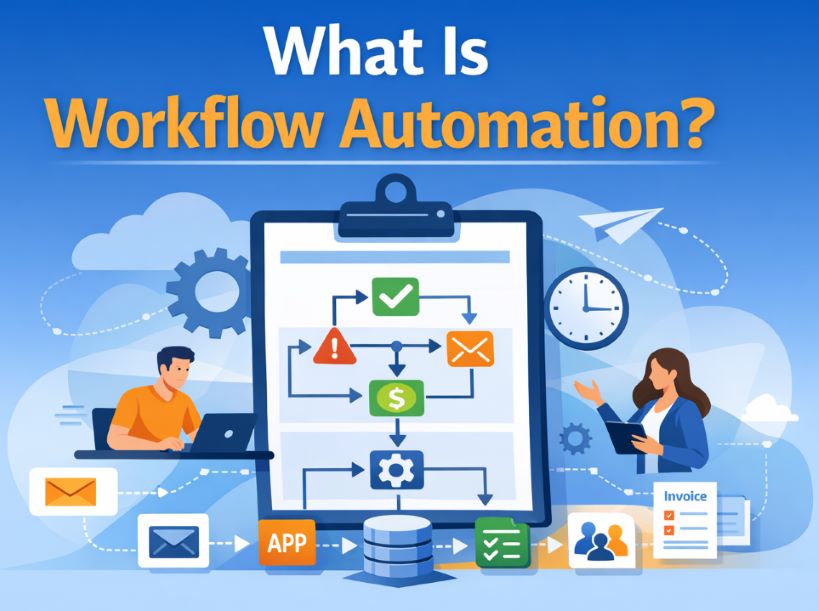

Document automation is the use of software to create, route, approve, sign, store, and track business documents without relying on manual steps at each handoff. It connects the systems where documents are created with the systems where they need to end up, so the process runs consistently regardless of volume, staffing changes, or time of day.
For small and mid-sized businesses, document automation solves a specific and expensive problem: the gap between where data lives and where documents need to go. Most businesses already have forms, CRMs, accounting tools, and storage systems. The problem is that documents still move between those systems through email, manual downloads, copy-paste, and verbal reminders. Document automation closes those gaps.
This guide covers what document automation is, how organizations design data flows between document automation and core systems, which business processes benefit most, and how to implement it without overcomplicating your operations.
What Is Document Automation?
Document automation is the process of using rules, triggers, and integrations to handle documents automatically at each stage of their lifecycle. That lifecycle includes creation, population with data, routing for review, approval, signature, storage, and notification.
A typical document automation workflow starts when something happens in another system. A form is submitted. A deal reaches a specific stage in a CRM. An invoice is approved. A contract is ready for signature. Instead of someone manually creating the document, attaching it to an email, and tracking responses, the automation handles each step based on predefined rules.
Document automation is not the same as document management. Document management systems store and organize files. Document automation moves documents through a business process. The two work together, but automation is what eliminates the manual labor between creation and completion.
Why Manual Document Processes Break Down
Manual document handling works when volume is low and processes are simple. A single employee can create a contract in Word, email it for approval, forward it to DocuSign, download the signed copy, rename it, and upload it to the right folder. That process takes 15 to 30 minutes per document when it goes smoothly.
The problem shows up at scale. When a business handles dozens or hundreds of documents per week, the manual approach introduces predictable failures:
Version confusion. Multiple people editing the same document through email creates conflicting versions. The signed version may not match the approved version.
Bottlenecks. Documents sit in someone’s inbox waiting for action because the next step depends on a person remembering to do it.
Missing audit trails. When a document is emailed between people, there is no central record of who reviewed it, when it was approved, or whether the final version was stored correctly.
Data re-entry. The same client name, address, project number, or service description gets typed into multiple documents and systems. Each re-entry is a chance for error.
Compliance risk. In regulated industries, a missing signature, unsigned addendum, or improperly stored document can create legal exposure.
How Organizations Design Data Flows Between Document Automation and Core Systems
The most common question businesses ask when considering document automation is not what tool to use. It is how to connect document workflows to the systems they already have. The answer depends on where documents originate, what data they need, who needs to act on them, and where they need to end up.
Mapping the Document Lifecycle
Every document workflow has a lifecycle. Before building automation, the lifecycle needs to be mapped clearly:
Data collection. Information is gathered through a form, CRM record, database entry, or manual input.
Document creation. A template is populated with the collected data to produce a draft document.
Review and approval. The document is routed to one or more people for review, edits, or approval before it moves forward.
Signature. The approved document is sent for electronic signature through a platform like DocuSign.
Storage. The completed document is saved to a designated location such as Google Drive, SharePoint, or a records management system.
Notification and follow-up. Relevant people are notified, CRM records are updated, and any downstream workflows are triggered.
Common Integration Patterns
| Lifecycle Stage | Source System | Destination | Integration Method |
|---|---|---|---|
| Data collection | Cognito Forms, Jotform, HubSpot | Database, CRM | Webhook, API, Make/Zapier |
| Document creation | Form data, CRM record | PDF generator, Word template | Cognito Forms PDF, Make, custom script |
| Approval routing | Generated document | Email, task system, internal tool | Make scenario, Zapier, custom workflow |
| Signature | Approved document | DocuSign, email | DocuSign API, Make/Zapier |
| Storage | Signed document | Google Drive, SharePoint | API, Make module, Zapier action |
| Notification | Completed workflow | CRM, email, Slack | Webhook, Make/Zapier, email trigger |
The key design principle is that data should flow in one direction through the lifecycle without anyone re-entering information.
Which Business Processes Benefit Most
Client Intake and Onboarding
Client intake is one of the highest-value targets for document automation. A new client submits an intake form. The workflow generates a welcome packet, service agreement, or engagement letter pre-populated with the client’s information. The document routes for internal review, then goes out for signature. Once signed, the document is filed and the client record is updated.
Contract Generation and Management
Businesses that generate contracts from proposals, quotes, or project scopes benefit significantly. The data that defines contract terms often already exists in a form, CRM, or project management tool. Automation pulls that data into a contract template, routes it through approvals, sends it for signature, and stores the executed version.
Invoice and Financial Document Workflows
Financial document automation connects form submissions, approvals, and accounting systems. A project is marked complete. An invoice is generated from the project data. The invoice is reviewed, approved, and sent to the client. Each step can be automated to reduce billing delays and prevent errors from manual data entry between systems like QuickBooks Online, HubSpot, and Cognito Forms.
Compliance and Regulatory Documentation
Regulated industries such as healthcare, legal services, construction, and government agencies handle documents that must follow specific review, approval, storage, and retention rules. Document automation creates consistent, auditable processes that reduce compliance risk.
Tools Commonly Used in Document Automation
Form platforms like Cognito Forms and Jotform collect the data that starts the workflow and can generate PDFs directly from submissions.
Orchestration tools like Make and Zapier connect systems, apply conditional logic, handle data transformation, and route documents between platforms.
Signature platforms like DocuSign handle electronic signature workflows including multi-party signing, sequential routing, and completion tracking.
CRM systems like HubSpot store the contact, deal, and project data that documents reference and update.
Accounting tools like QuickBooks Online connect invoices, estimates, and payment records to the document workflows that generate them.
How to Implement Document Automation Step by Step
Step 1: Identify the Workflow
Start with one document process that happens frequently and involves multiple systems. Common starting points include client intake forms that generate agreements, invoices triggered by project completion, or onboarding packets sent after contract signing.
Step 2: Map the Current Process
Document every step in the current manual process. Who does what? Where does the data come from? Who approves? Where is the document stored? This map becomes the blueprint for the automation.
Step 3: Design the Automated Workflow
Replace manual handoffs with automated connections. Define triggers, actions, conditional logic, error handling, and notification rules.
Step 4: Build and Test
Build the workflow in stages. Test each connection individually, then test the full end-to-end process with real data. Check edge cases: what happens when a required field is empty, when an approver is out of office, or when a signature is declined?
Step 5: Launch and Monitor
Deploy the workflow and monitor it for the first few weeks. Adjust rules as needed based on real-world use. Managed automation support keeps the system running smoothly over time.
Document Automation FAQ
What is the difference between document automation and document management?
Document management systems organize, store, and retrieve files. Document automation creates, routes, and processes documents through business workflows. Management is about storage. Automation is about movement and action.
How do organizations design data flows between document automation and core systems?
Organizations map the document lifecycle first, identifying where data originates, what systems need it, and where completed documents should be stored. Integration tools like Make or Zapier connect the systems at each stage. The design principle is that data entered once should flow through the entire process without re-entry.
Can document automation work with the tools I already use?
Yes. Most document automation implementations connect existing tools rather than replacing them. If your business uses Cognito Forms, HubSpot, QuickBooks, DocuSign, or Google Drive, automation connects them into a workflow rather than requiring a new system.
How long does it take to implement document automation?
A single document workflow can be built and tested in days. Multi-system implementations typically take 2 to 4 weeks. Scope is defined before work begins.
Is document automation secure?
Security depends on the tools and configuration. Encrypted API connections, role-based access, secure credential storage, and audit logging are standard. Industries with compliance requirements require additional review during the design phase.
How Workflow Automation Pro Helps with Document Automation
At Workflow Automation Pro, we design, build, and manage document automation systems that connect forms, approvals, signatures, storage, and business systems into reliable workflows. As a certified Cognito Forms partner with 15+ years of systems experience, we understand the challenges of connecting documents to real business operations.
If your business is spending too much time creating, routing, tracking, or storing documents manually, request a system review to identify the best opportunities for document automation.