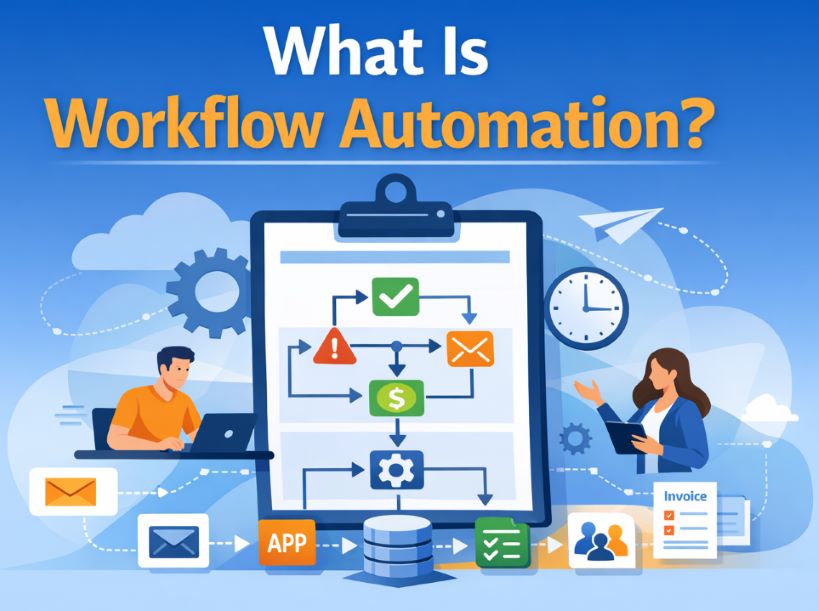

Somebody in your office has two windows open. On the left is a form submission — a name, an email, a service, a quantity, a rate. On the right is QuickBooks Online, and they are typing the same figures in again. They do it forty times a week. Most of the time they get it right. The times they don’t are the ones you hear about, usually from a customer, usually about an invoice.
There is no native Cognito Forms → QuickBooks Online connector. There is a webhook on one side, a REST API on the other, and an automation platform in the middle doing the translation. This page is the build, step by step, with the decisions named rather than skipped. Steps and module names verified September 2026 against current Cognito Forms and Make documentation; both platforms rename things, so check the module list before you copy a mapping.
Who this is for, and who it isn’t
A good fit when the form already collects everything the invoice needs, the same person types it into QuickBooks afterward, your products and services already exist as items in QuickBooks, and your pricing follows rules someone could write down.
Probably not a fit when every invoice gets a judgment call on price before it goes out — automate everything around that call and leave the call alone. Also not a fit when you are on QuickBooks Desktop, which is a different API and a different build entirely. And if you send four invoices a month, the honest answer is that the automation costs more attention than the retyping does.
One thing to settle before anything gets built: does a submission create a customer record, an invoice, or both? They are different builds with different failure modes. Most firms want both, and most of the trouble in this integration lives in the word “and.”
Step 1 — Turn on the webhook, and name the fields yourself
In the form’s Settings, check Post JSON Data to a Website. Cognito Forms offers three separate endpoints — Submit Entry, Update Entry, and Delete Entry — and you want the Submit endpoint first and the Update endpoint only once you have decided what an update should do to an invoice that already exists. The feature is on Pro, Team and Enterprise plans.
Then, before you map anything, open form settings and check Customize Field Names. This is Developer Mode, and it shows each field’s internal name under its label. Why: the internal name is the key your automation reads. If you let it default off the label, then somebody renames “Service” to “Service Type” next spring and the mapping goes quietly empty. Name the fields deliberately, write the names down, and treat them as a contract.
Two behaviours worth knowing now rather than at 11pm. Cognito retries a failed delivery — its documentation says up to 15 times over 72 hours on a 4XX or 5XX response, with 404, 410 and 413 excluded. And webhooks do not fire for entries saved through Save & Resume, so a form your customers half-complete and come back to needs its trigger thought about separately.
Step 2 — Catch the payload and look at it
In Make, the receiving module is Webhooks → Custom webhook. In Zapier it is Webhooks by Zapier → Catch Hook. Paste the URL into the Submit Entry Endpoint box in Cognito, submit one real entry, and let the platform learn the structure.
Why this is its own step: you are not confirming that it works. You are reading what actually arrived. Repeating sections arrive as arrays. Generated documents arrive as numbered properties with time-limited URLs. And every number in that payload is a string, which is the subject of the most expensive paragraph on this page, further down.
Step 3 — Match the customer before you create one
An invoice in QuickBooks Online needs a CustomerRef. So the first real decision is: is this person already in QuickBooks?
In Make, use QuickBooks → Search for Customers, then a Router with two branches and a filter on whether a record came back: found goes straight to the invoice, not-found goes through Create a Customer first. Zapier has a single Find or Create Customer action that does both, and a Find Customer by Query action that takes a SQL-like WHERE clause when you need to match on something the simple search won’t reach.
Why the query matters more than the module: what you match on decides how often this build embarrasses you. Display name is the obvious choice and the worst one — “Smith Roofing” and “Smith Roofing LLC” are two customers, and now one of them is getting invoices that belong to the other. Email is a better key because it is unique-ish and the customer typed it themselves, but two people at one company share a billing address and not an inbox. Best is an identifier you control: a customer number your form collects or your system assigns, written into a QuickBooks custom field or the customer’s display name in a fixed format. Pick the key deliberately. The default is the one that fails silently.
Step 4 — Build the line items, and do the arithmetic properly
An invoice line is an object with an Amount, a DetailType of SalesItemLineDetail, and inside that detail an ItemRef pointing at a product or service that already exists in QuickBooks, plus Qty. Check the current Invoice entity reference on Intuit’s developer site for the full field list before you build — it is the one document in this stack that is worth reading in full rather than in summary.
If the form has a repeating section — three services on one submission — you need one line per row. In Make that is an Iterator over the array, then an Array aggregator to collect the results back into the single collection the invoice module expects. Do not build this by mapping “row 1, row 2, row 3” into three fixed slots. A fourth row will arrive and nobody will notice it was dropped.
Now the part that costs money. A form POST sends everything as a string. Quantity 2 is the text “2”. Rate 12.50 is the text “12.50”. When the platform’s + operator meets two strings, it concatenates them: 2 + 2 becomes 22, and nothing anywhere throws an error, because joining two strings is a perfectly legal thing to do. The invoice goes out. It is wrong by an order of magnitude and it looks entirely normal.
The fix is to convert before you calculate, never after. In Make, wrap every incoming numeric field in parseNumber() — {{parseNumber(1.Quantity) * parseNumber(1.Rate)}} — and mind the decimal separator, because parseNumber takes one as its second argument for a reason. In Zapier, use a Formatter → Numbers step, or do the arithmetic in a Code step where the types are yours to control. Better still, do the maths in Cognito Forms: a calculated field computing the line total is genuinely numeric at source, it shows the customer the figure before they submit, and it means the number crossing the wire is one you have already shown someone.
Then test it with a quantity of 2 and a rate of 2. If the line total is 22, you have found it before your customer did. This is the single test most worth writing down in the runbook, and it is the sort of thing we look for on every QuickBooks automation build before anything is allowed near a live company file.
Step 5 — Decide who calculates the tax
QuickBooks Online has Automated Sales Tax, which computes tax from the addresses and the item’s taxability rather than from a rate you send. That is the behaviour you want, and it also means the tax figure on the finished invoice may not be the one your form displayed.
Why this is a decision and not a setting: if your form shows the customer a total including tax, and QuickBooks then computes a different one, you have two numbers for the same invoice and a phone call. Pick one authority. Either let QuickBooks own tax entirely and have the form quote a pre-tax subtotal, or have the form own it and make sure the customer’s shipping and billing addresses reach QuickBooks so the two agree. Whichever you choose, run one live invoice in each state or tax jurisdiction you actually bill in and compare the two figures side by side. A tax rule you have not tested in the jurisdiction it applies to is an assumption.
Step 6 — Write the QuickBooks ID back to the entry
The last module in the scenario should push the created invoice’s ID and document number back onto the Cognito entry, through the Cognito Forms API or a field on the form.
Why: it is what makes the next six months bearable. It is your duplicate check, your audit trail, and the answer to “did this one go through?” without anyone opening two systems. A submission with no invoice ID on it is a submission that failed, and you can see that at a glance in an entry view rather than reconciling at month end. Everything after launch — the duplicate guard, the alerting, the monthly check — hangs off this one field existing.
Where this breaks
The same invoice, twice
Webhooks retry. Cognito resends up to 15 times over 72 hours when it gets an error back, and a scenario that fails after creating the invoice but before finishing will be re-sent the same entry and create a second one. Resubmissions and Update Entry events do the same thing from the other direction.
Guard it on your side. Before creating anything, check whether this entry already has an invoice ID written back to it (Step 6), or keep a Make data store keyed on the entry’s identifier and look it up first. Do not rely on QuickBooks to catch it: duplicate document number behaviour depends on account preferences an integration cannot read, and where it does fire it arrives as an error rather than the warning a human would get in the interface. Your idempotency key is your job.
The mapping that broke because somebody added a field
If any part of this chain addresses data by position rather than by name — column 3 of a sheet, item 2 of an array, the third element of a split — then inserting one field in the middle of the form re-points every mapping after it, silently and all at once. The rate becomes the quantity. Nothing errors. We have watched a mid-schema insert re-point thirteen mappings in one afternoon, including the one holding consent evidence.
Two rules. Map by field name, never by index, which is exactly what Developer Mode in Step 1 buys you. And when the form schema does change, regenerate the mapping rather than hand-patching it, then re-run the 2 × 2 test. Adding a field to a form should cost an adjustment, not an investigation.
Two customers who are the same person
Match too loosely and one customer’s invoice lands on another’s account. Match too tightly and QuickBooks accumulates “Smith Roofing”, “Smith Roofing LLC” and “smith roofing” as three separate customers with the balance split between them, which is not visible until someone runs an A/R report and it doesn’t reconcile. Trim and normalise the key before you search, and put a monthly eyeball on new customer creations for the first quarter. If the automation is creating a new customer on most runs, the key is wrong.
The run that failed and told nobody
A QuickBooks connection’s authorisation expires. An item gets renamed and ItemRef stops resolving. The scenario stops, and the only person who finds out is the customer who never got an invoice.
So: enable incomplete executions on the scenario, so a failure is parked with its data instead of evaporating. Attach a Retry error handler to the modules that talk to QuickBooks, because connection and rate-limit errors are transient and genuinely do resolve on the second attempt. Then attach a route that sends a real notification to a real person on anything that is still failing after the retries. And check it: break it on purpose once, before launch, and confirm the alert actually arrives. An alert nobody has ever seen fire is not an alert. This is the part of a build that gets skipped and the reason workflow automation earns a reputation for being fragile — the wiring is usually fine, the watching is what was never built.
Questions we get asked
Make or Zapier?
For this specific job: Zapier gets you there faster because Find or Create Customer is one step where Make needs a search, a router and a create. Make handles repeating sections more comfortably, because Iterator and Array aggregator are built for turning an array of form rows into an array of invoice lines, and its error handlers and incomplete executions give you more to work with when a run fails at 2am. Both platforms also expose a raw call — Make’s Make an API Call module — so neither one boxes you in when a field isn’t on the standard module. Price both against your actual monthly submission volume, since the pricing models differ and change; check the current plan pages rather than a figure quoted in a blog post.
Can it create the customer and the invoice from one submission?
Yes, and that is the normal build: search for the customer, create one only if nothing matches, then create the invoice against whichever ID you now hold. The ordering matters because an invoice cannot exist without a CustomerRef. The part that needs thought is not the sequence but the matching key — get that wrong and you are not automating invoicing, you are automating the creation of duplicate customers.
What happens if someone edits the entry after it has been invoiced?
Whatever you decide, and you do have to decide. Cognito’s Update Entry endpoint is separate from Submit Entry, so you can leave it unconnected and edits change nothing in QuickBooks. You can wire it to update the existing invoice using the ID you wrote back. Or you can have it notify a person rather than act. The wrong answer is connecting Update to the same scenario as Submit, because then every edit creates a second invoice. Most firms should start with edits doing nothing and add behaviour once they have seen what people actually edit.
Why did my invoice total come out as a nonsense number?
Almost certainly string concatenation. A form POST sends every value as text, so a platform’s + joins rather than adds and quantity × rate can produce a figure that is wrong without being an error. Convert every numeric field explicitly before any arithmetic — parseNumber() in Make, a Formatter or Code step in Zapier — or calculate the line total in Cognito Forms itself so the value is numeric at source. Test with quantity 2 and rate 2: if you get 22, that is the bug.
How long does this take to build?
The happy path — one customer, flat line items, no repeating section — is a short build. What extends it is the list above: the matching key, the tax authority, the duplicate guard, the alerting, and testing each in the conditions it actually has to survive. If somebody quotes you an afternoon, ask which of those five they are including. Our portfolio includes a live quoting and invoicing system that computes pricing and issues the invoice without anyone on staff touching it; the interesting time on that build was never the wiring.
If you want this built
Tell us what the process looks like now — who retypes what, into which QuickBooks company, and what they have to decide while they do it. We will map what a system would need to do. No obligation, and you keep the map either way.
Module names and platform behaviour verified September 2026 against Cognito Forms support documentation, Make’s QuickBooks module reference and error-handling documentation, and Zapier’s QuickBooks Online action list. Field-level QuickBooks Online details should be checked against the current Invoice entity reference at developer.intuit.com, which changes by minor version.